Imagen has three AI tools to crop photos: Crop, Portrait Crop, and Headshot Crop. For Portrait Crop and Headshot Crop, you can change the aspect ratio and the space around your subject. If you need help, reach out to our team and include screenshots with your request.
You must edit your photos to use the AI tools.
Crop
The Crop AI tool identifies the main subject and crops the photo to a 2 x 3 aspect ratio. It correctly frames the subject and removes unnecessary background.
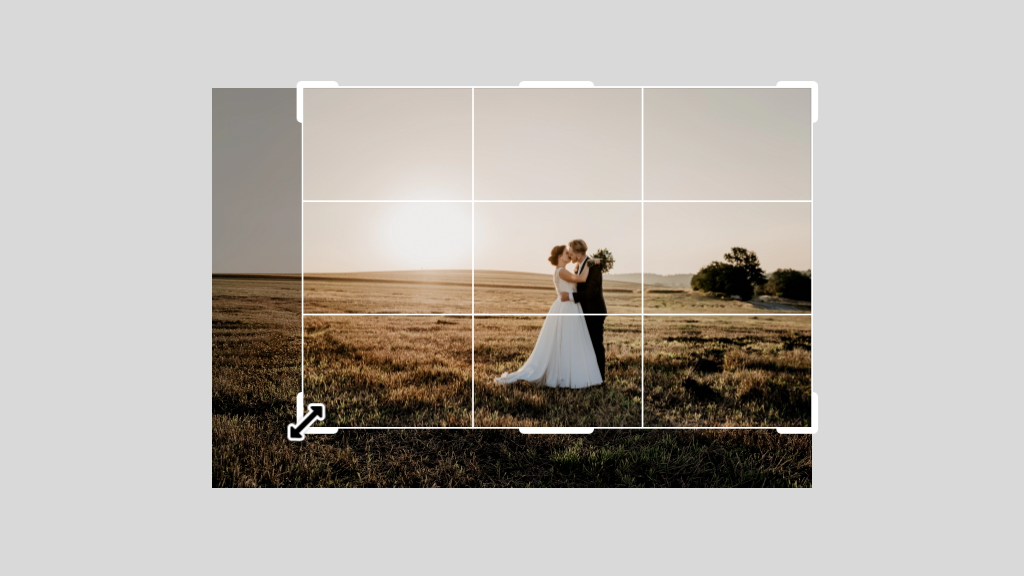
Portrait Crop
The Portrait Crop AI tool centers the main subject of each photo and then crops to the aspect ratio you choose. By default, the aspect ratio is 4 x 5, but you can change it to 2 x 3 or 5 x 7. It keeps optimal spacing above the head and other key details. We recommend using Portrait Crop for portrait and studio shoots as well as school and sports. Only portrait orientation is supported.
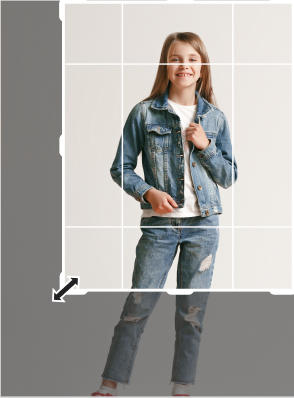
Headshot Crop
The Headshot Crop AI tool automatically aligns and sizes all your headshots consistently, making it ideal for yearbook and professional headshots. It centers the subject and aligns the eyes to the same horizontal line, across photos. You can change the aspect ratio to 1 x 1, 2 x 3, or 5 x 7. Only portrait orientation is supported.
Change the aspect ratio and space around the subject for Portrait Crop and Headshot Crop
You can change the aspect ratio and set up the space around your subject. When you set up the space, you can save different settings for portrait and landscape orientations. The aspect ratio, however, remains set. For example, if your aspect ratio is 5 x 7 for portrait orientation, you can change the spacing around the subject, but the aspect ratio will not change.
- From the Portrait Crop or Headshot Crop tool, click Update settings for Portrait Crop or Update settings for Headshot Crop.
The Crop settings page opens.
- On the right side, set the aspect ratio. By default, the frame shows the space around the subject for portrait orientation.
- (Optional) To set the framing, drag the frame to control how tight or loose you want the crop to be.
Under Framing for portrait, set the framing for Full body and for Three-quarters.
Under Framing for landscape, set the framing for Full body and for Three-quarters.
- Click Save changes. These changes are set for this project and all future projects that use the Portrait Crop and Headshot Crop AI tools.
Swap the AI Profile and tools to try different settings
If you want to try different settings with the cropping AI tools, you can swap the AI Profile and tools to edit again.